
Short Answer
In the modern era of content creation, video editing has transitioned from a specialized skill to a fundamental necessity. Whether you are developing a YouTube vlog, designing an Instagram Reel, or refining a professional presentation, the quality of your editing tool directly impacts your final output. However, finding a free online video editor that does not impose restrictive watermarks on exported files can be a significant challenge.
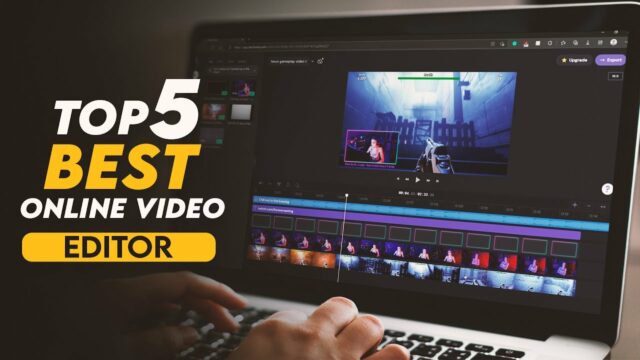
To assist creators in finding the right tools, we have analyzed and compiled a list of the top five online video editing platforms that offer watermark-free exports for PC users in 2024.
1. Clipchamp
Best for: Beginners and Professionals
Now integrated into the Microsoft ecosystem, Clipchamp has emerged as one of the most versatile web-based editors. It balances a low learning curve with powerful features, making it suitable for a wide range of users.
Key Features
- Intuitive drag-and-drop interface for streamlined workflows.
- Extensive library of stock videos, audio tracks, and templates.
- Support for high-resolution 4K video exports.
- Advanced capabilities including green screen (chroma key) and professional transitions.
Why It Is Recommended
Clipchamp is highly praised for allowing users to export videos without watermarks even on the free tier. Its seamless integration with Google Drive and OneDrive makes it an efficient choice for PC users managing cloud storage.
Official Website: clipchamp.com
2. Canva Video Editor
Best for: Social Media Content Creators
While globally recognized as a graphic design powerhouse, Canva’s video editing suite is exceptionally potent for those targeting social platforms.
Key Features
- Platform-specific templates optimized for TikTok, Instagram, and YouTube.
- A simplified timeline for efficient trimming and merging of clips.
- A vast array of free animations, visual effects, and transitions.
- Robust text overlay tools and custom branding options.
Why It Is Recommended
The primary appeal of Canva is its accessibility. The free plan supports watermark-free exports, ensuring that budget-conscious creators can produce professional-looking social media assets quickly.
Official Website: canva.com
3. Kapwing
Best for: Collaborative Projects
Kapwing is a cloud-native editor designed for speed and teamwork. Because it is entirely web-based, it eliminates the need for software installation, allowing for instant access from any PC.
Key Features
- Standard editing tools: trimming, cropping, and merging.
- Specialized tools for adding subtitles, filters, and text overlays.
- Real-time cloud collaboration for distributed teams.
- Direct integration for publishing to YouTube and TikTok.
Why It Is Recommended
Kapwing provides a straightforward interface that is welcoming to novices. Users can export watermark-free content provided they are signed into their accounts, making it a reliable choice for collaborative work.
Official Website: kapwing.com
4. FlexClip
Best for: Rapid Editing and Promotional Content
FlexClip focuses on efficiency, providing a streamlined environment for users who need to produce polished videos in a short timeframe.
Key Features
- User-friendly drag-and-drop functionality.
- Integrated library of royalty-free music, stock footage, and animations.
- Built-in screen recording and voiceover tools.
- Customizable templates tailored to various business niches.
Why It Is Recommended
FlexClip stands out by allowing watermark-free exports up to 1080p resolution on its free plan, ensuring that high-definition quality is maintained without extra cost.
Official Website: flexclip.com
5. InVideo
Best for: Professional-Grade Visuals
InVideo bridges the gap between amateur editing and professional production, offering a sophisticated set of assets and tools.
Key Features
- An expansive library of over 5,000 professional templates.
- Innovative text-to-video conversion capabilities.
- Advanced control over animations, transitions, and overlays.
- Access to a wide range of royalty-free assets.
Why It Is Recommended
For personal projects, InVideo allows users to export videos without watermarks. Its professional-grade toolset ensures that the final product possesses a high level of polish and cinematic quality.
Official Website: invideo.io
Advantages of Using Online Video Editors
The shift toward browser-based editing offers several distinct advantages over traditional desktop software:
- Convenience: No installation or hardware configuration is required; editing happens directly in the browser.
- Hardware Compatibility: Since processing often happens on the cloud, these tools run smoothly on PCs regardless of their local hardware specifications.
- Cost-Efficiency: Most platforms offer tiered pricing with robust free versions.
- Collaboration: Cloud-based systems enable multiple users to edit a single project simultaneously from different locations.
Selection Methodology
To ensure the accuracy of this list, each platform was evaluated based on the following criteria:
| Criterion | Requirement |
|---|---|
| Ease of Use | Must have an intuitive, beginner-friendly UI. |
| Feature Set | Must provide essential trimming, merging, and text tools. |
| Export Policy | Must allow watermark-free exports on the free plan. |
| Performance | Must maintain stability across major PC browsers. |
Honorable Mentions
While the top five are the best for watermark-free needs, these tools are also worth noting:
- WeVideo: Excellent for educational environments, though the free plan typically includes watermarks.
- VEED: Highly efficient for quick subtitles and edits, but offers limited features in the free tier.
Conclusion
Finding a high-quality online video editor that does not apply a watermark is a challenge, but platforms like Clipchamp, Canva, Kapwing, FlexClip, and InVideo provide excellent solutions. Whether you are a casual hobbyist or a budding professional, these tools offer the necessary power to create stunning visual content in 2024 without financial barriers.
FAQ
Are these video editors truly free?
Yes, all listed tools offer a free tier that allows for basic editing and watermark-free exports, though some may have limitations on project length or asset usage.
Do I need to install any software?
No, these are all online editors that run directly within your web browser on a PC.
Can I export in 4K for free?
Some tools like Clipchamp support 4K, while others may limit free exports to 1080p.






Leave a Reply